
Persistent Sessions
1M ultra-long context
 Deep Code
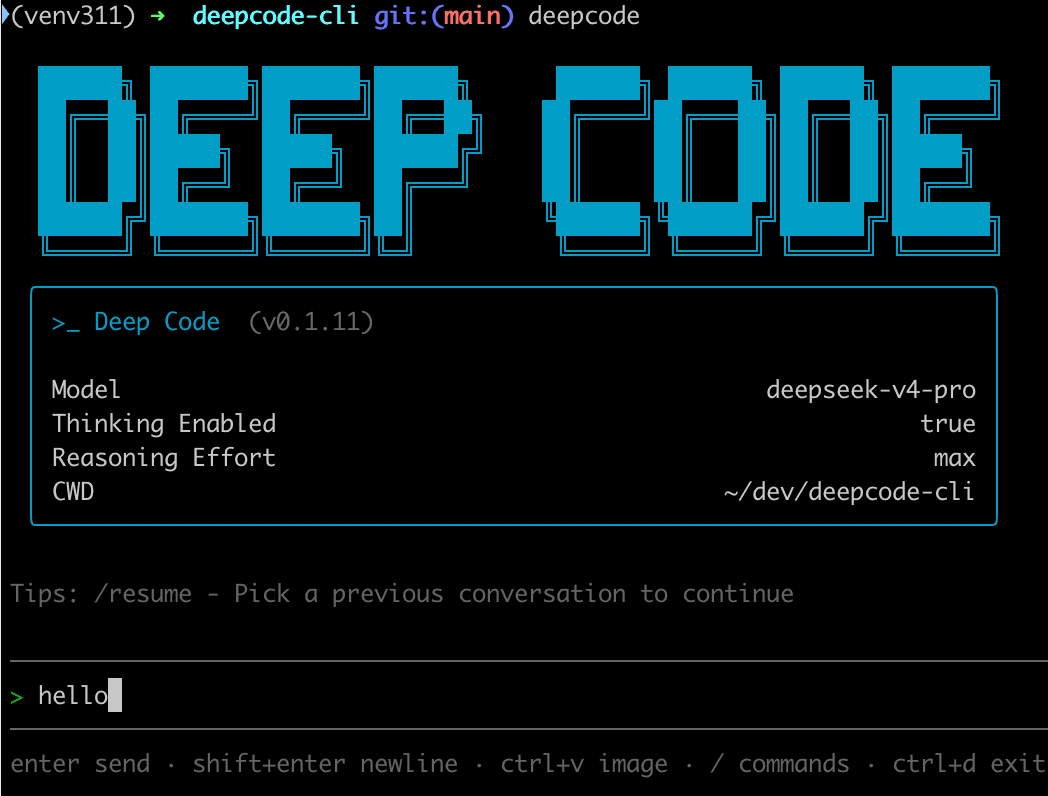
Deep Code is a terminal AI coding assistant built for DeepSeek-V4 — deep thinking, Agent Skills, and both a CLI and a VS Code extension.
 DeepSeek Priority
 Ultra-Long Context
 Tool Calling
 Skill Extension
 Model Compatible
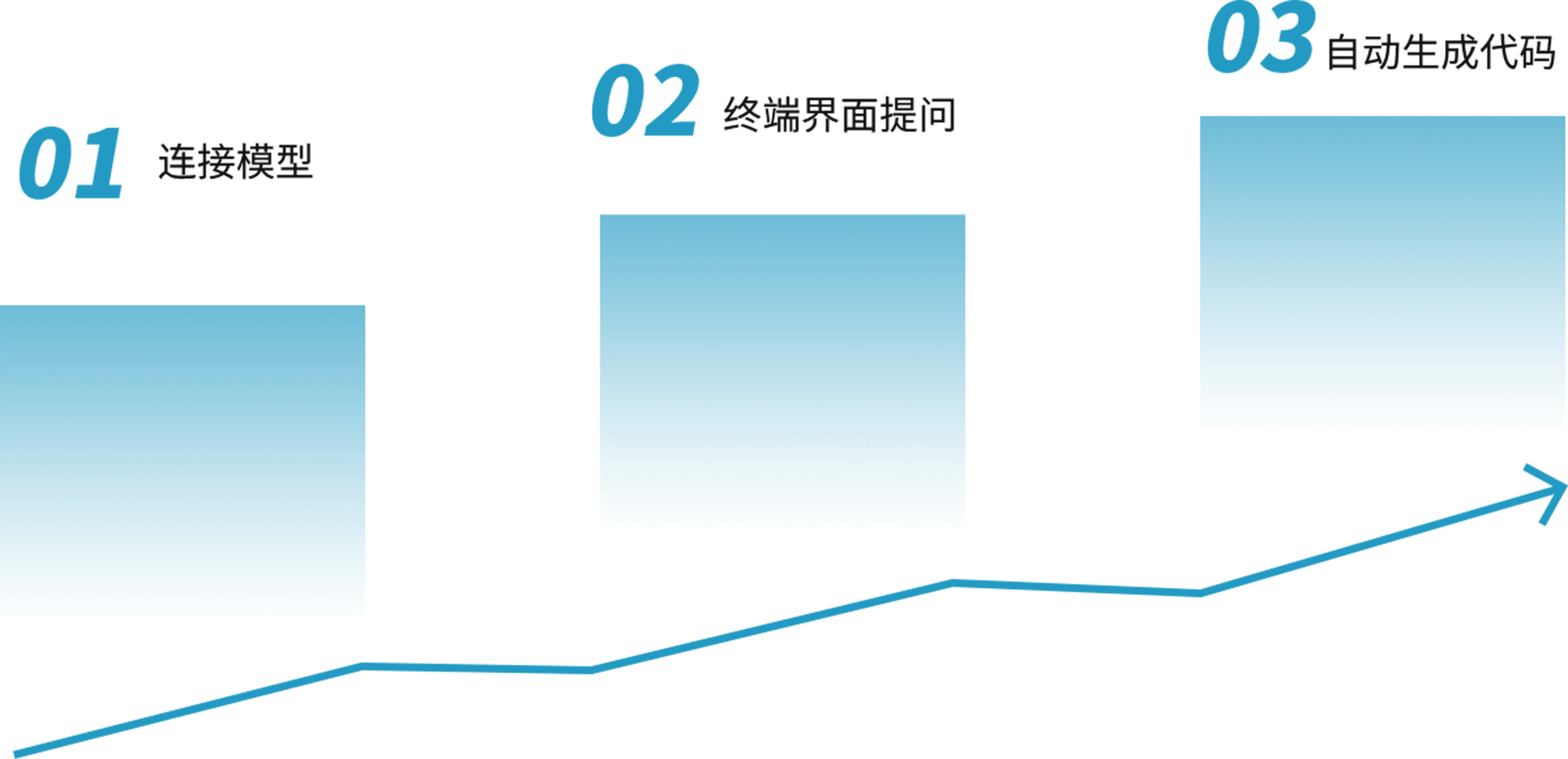
Ask, modify, and execute in the same context without switching windows
1M ultra-long context

Read/Write/Edit/Execute commands

Stable access, no proxy needed



Built for individual developers and everyday work: long-term, high-frequency text and code, plus image understanding, image generation, and video generation.
 Regular AI Tools
Misses DeepSeek features like thinking mode, reasoning control, and prefix caching.
DeepSeek Priority, Ultra-Long Context, File Operations, Skill Extension, Model Compatible
~/.deepcode/settings.json with:{
"env": {
"MODEL": "deepseek-v4-pro",
"BASE_URL": "https://api.deepseek.com",
"API_KEY": "sk-..."
},
"thinkingEnabled": true,
"reasoningEffort": "max"
}Yes. Deep Code offers a full-featured VSCode extension, available on the VSCode Marketplace. The extension shares the ~/.deepcode/settings.json configuration file with the CLI, so you can switch seamlessly between the terminal and the editor.
Yes. Multimodal models such as deepseek-flash can read local images directly, or you can paste images from the clipboard with Ctrl+V. Other models use the built-in image-understanding tool automatically. See docs/configuration_en.md for configuration details.
Write a shell notification script — for example, one that calls a Slack webhook — then set the notify field in ~/.deepcode/settings.json to the full path of the script. Deep Code runs it automatically when a task completes. For detailed steps, see docs/notify_en.md.
Deep Code comes with a built-in, free Web Search tool that works well for most use cases. If you prefer to use a custom script for web search, set the webSearchTool field in ~/.deepcode/settings.json to the full path of your script. For detailed steps, refer to: https://github.com/qorzj/web_search_cli
Yes. Just set env.BASE_URL in ~/.deepcode/settings.json to an OpenAI-compatible API endpoint. Take Volcengine Ark's Coding Plan as an example:
{
  "env": {
    "MODEL": "ark-code-latest",
    "BASE_URL": "<your Coding Plan endpoint>",
    "API_KEY": "**************"
  },
  "thinkingEnabled": true
}Deep Code supports MCP (Model Context Protocol) to connect external services such as GitHub, browsers, databases, and more. Configure the mcpServers field in settings.json to enable it, then use the /mcp command to view MCP server status and available tools. For detailed setup instructions, see docs/mcp.md.
No. Deep Code has a built-in fine-grained permission control mechanism that lets you confirm operations before the AI assistant executes shell commands, reads/writes files, accesses the network, and more. You can configure each permission scope's policy — always allow, always ask, or deny — via the permissions field in settings.json. See docs/permission.md for details.